
The core idea
A computer runs software instructions on physical hardware. Working memory holds current activity; storage keeps saved information. A file has content, a name, a format and a location. Knowing all four helps you find and use the correct version.
1. From a tap to a result
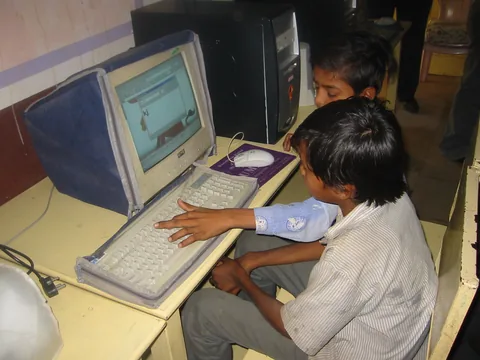
When you type a sentence, the keyboard provides input. A processor executes instructions from the writing application, memory holds the current work, and the screen displays output. Saving writes information to storage. Hardware means physical parts; software means the instructions they follow. The operating system manages resources and provides common services, such as opening files and connecting a printer. A browser is an application, not the whole computer. A smartphone follows the same broad pattern even though its keyboard may be on the screen. If a document will not print, separate possible causes: does the document open, does the operating system recognise the printer, and is the printer ready? This sequence tests different parts instead of repeatedly tapping Print without learning anything.

Sources: IBM: Computer hardware ↗
2. Memory, storage and saving
Think of working memory, usually RAM, as a worktable and persistent storage as a cupboard. The analogy explains their roles, not their exact electronics. A large cupboard does not automatically give you a large worktable. Many open applications can compete for working memory even when storage has free space. Ordinary RAM loses its contents when power is removed; saved files on a drive usually remain. Autosave can reduce loss, but its availability and timing depend on the application. Check the saved status rather than assuming every visible edit is permanent. A storage warning is different from a slow application: moving unwanted videos may free storage, while closing unnecessary applications may reduce memory pressure. Neither action repairs every cause of slowness, so identify the symptom before choosing a remedy.
Sources: IBM: Primary and secondary storage ↗
3. A file needs more than a name
A file is a stored collection of information. Its format describes how that information is arranged: a JPEG image, a PDF document and an editable text document need different interpretation. An extension such as .jpg or .pdf is a useful clue, but simply changing it does not convert the contents. Export or a suitable conversion tool changes format. A folder groups files; a path states their location through folders. Two files named report.pdf can be different if one is in Drafts and another in Submitted. Use informative names such as science-notes-v02, without putting private identifiers in the name. Show file extensions when your device permits it. Opening an unfamiliar file should depend on its actual type and trusted origin, not only a reassuring icon or label.
Sources: MDN: Dealing with files ↗ · CERT-In: Digital Safety Compass Handbook ↗
4. Worked scenario: which assignment was submitted?
Kavya writes an assignment in a folder called School/Science/Drafts. She exports a PDF to Downloads, revises the editable document, then uploads the old PDF by mistake. The upload succeeds, but the content is wrong. The failure is version control, not internet access. A better sequence is to save the revised source, export a fresh PDF into School/Science/Submitted, open that exported file and check the changed paragraph, then choose that exact file for upload. Keep the editable source because a PDF is not a replacement for convenient future editing. Copy creates another instance; move changes location. A shortcut usually points to an existing item, so copying the shortcut is not necessarily copying the document. Confirm the file opens at its destination before removing any source copy.
From an idea to a saved file
- InputA keyboard or touchscreen supplies your action.
- Processing + RAMThe application works on the current content.
- OutputThe screen displays a result you can inspect.
- Persistent storageSaving records a file; a checked separate copy supports recovery.
Sources: MDN: Dealing with files ↗
5. Worked scenario: preparing for a village journey
Arif sees a cloud document in a file list and assumes it is on his phone. On a bus without connectivity, it will not open. The list showed a reference to online content, not proof of a complete local copy. Before the next journey, he uses the application's offline feature or downloads an appropriate copy, then disconnects temporarily and tests it. A downloaded PDF can be read independently but will not necessarily receive later edits. An offline editable document may synchronise changes when connectivity returns; conflicting edits need checking. Google Drive documents have specific browser and setup requirements, so follow the current help for the device. Never enable persistent offline access to personal documents on a shared laboratory computer merely for convenience; those local copies may remain after the session.
Sources: Google Drive: Use files offline ↗ · Google Drive: Share files and choose permissions ↗
6. A backup is a recoverable extra copy
Synchronisation keeps locations aligned; backup preserves a recovery option. If deletion is synchronised, a mistake can spread to another device. Version history or a recycle bin may help, but availability and retention vary. Keep an independent copy of important work, stored securely, and occasionally restore a harmless sample to test the process. A backup that nobody can open has not yet proved useful. For an accidentally deleted local file, check the recycle bin and existing backups before trying recovery. Further writes can overwrite recoverable data, so avoid filling that drive while seeking help. Recovery is not guaranteed. Finally, protect the backup too: an unencrypted shared USB drive containing personal documents can prevent one kind of loss while creating a different privacy problem.
Sources: Microsoft: Windows File Recovery ↗ · W3C: Privacy Principles ↗
PUT IT INTO PRACTICE
Build and test a small project folder
- Create a practice folder with Drafts, Submitted and Backup inside it. Use invented text, not an identity document. Save a short editable note in Drafts.
- Revise one sentence, export a PDF into Submitted, and open the PDF to verify the revision. Explain why renaming the extension would not do the same job.
- Copy the editable note to Backup. Temporarily turn off connectivity and test any file you intend to use offline. Record which copies still open.
- Solution reasoning: the source supports editing; the checked PDF is the submission; a tested independent copy supports recovery. A Backup folder on the same drive rehearses the method but does not protect against losing that drive.
Check your understanding
Why can a computer have free storage and still struggle with many open apps?
Storage and working memory serve different roles. Apps may compete for RAM or processing time; unused drive capacity does not eliminate that competition.
Does report.pdf prove the file contains a readable PDF?
No. The extension is a clue, not a conversion or guarantee. Check the actual file with a suitable application and consider its source.
Why keep both an editable source and an exported PDF?
They support different tasks: future changes and a checked submission. Later source edits do not automatically update an older exported PDF.
Is seeing a cloud filename enough to promise offline access?
No. A list may show online-only content. Prepare a local or offline copy and test it while disconnected before depending on it.
Why is synchronisation alone an incomplete backup strategy?
It may propagate mistakes or deletions. Recovery needs an available earlier version or independent copy that has actually been tested.
Why test recovery with harmless practice text first?
It reveals missing files, permissions or unreadable formats without risking an important original. The test checks the whole recovery process.